
Modern televisions offer stunning visuals and immersive sound, but many viewers never experience their TV’s full potential.
Out-of-the-box settings are often designed for showroom display rather than home environments. As a result, picture quality may appear too bright, too dark, overly saturated, or unnatural.
Similarly, built-in TV speakers often fail to deliver clear dialogue or balanced audio, especially in larger rooms.
If you’ve ever wondered why movies look different at home compared to cinemas or why dialogue sounds unclear during action scenes, you’re not alone.
The good news is that improving your television experience does not always require expensive upgrades. In many cases, simple adjustments to settings, room placement, and sound configurations can dramatically enhance performance.
Understanding how to improve TV picture and sound quality helps you maximize your viewing experience, whether you use cable TV, streaming platforms, gaming consoles, or Blu-ray players.
This guide covers practical steps to optimize brightness, contrast, color accuracy, resolution, audio clarity, speaker setup, and overall home entertainment performance.
Why TV Picture and Sound Quality Matter
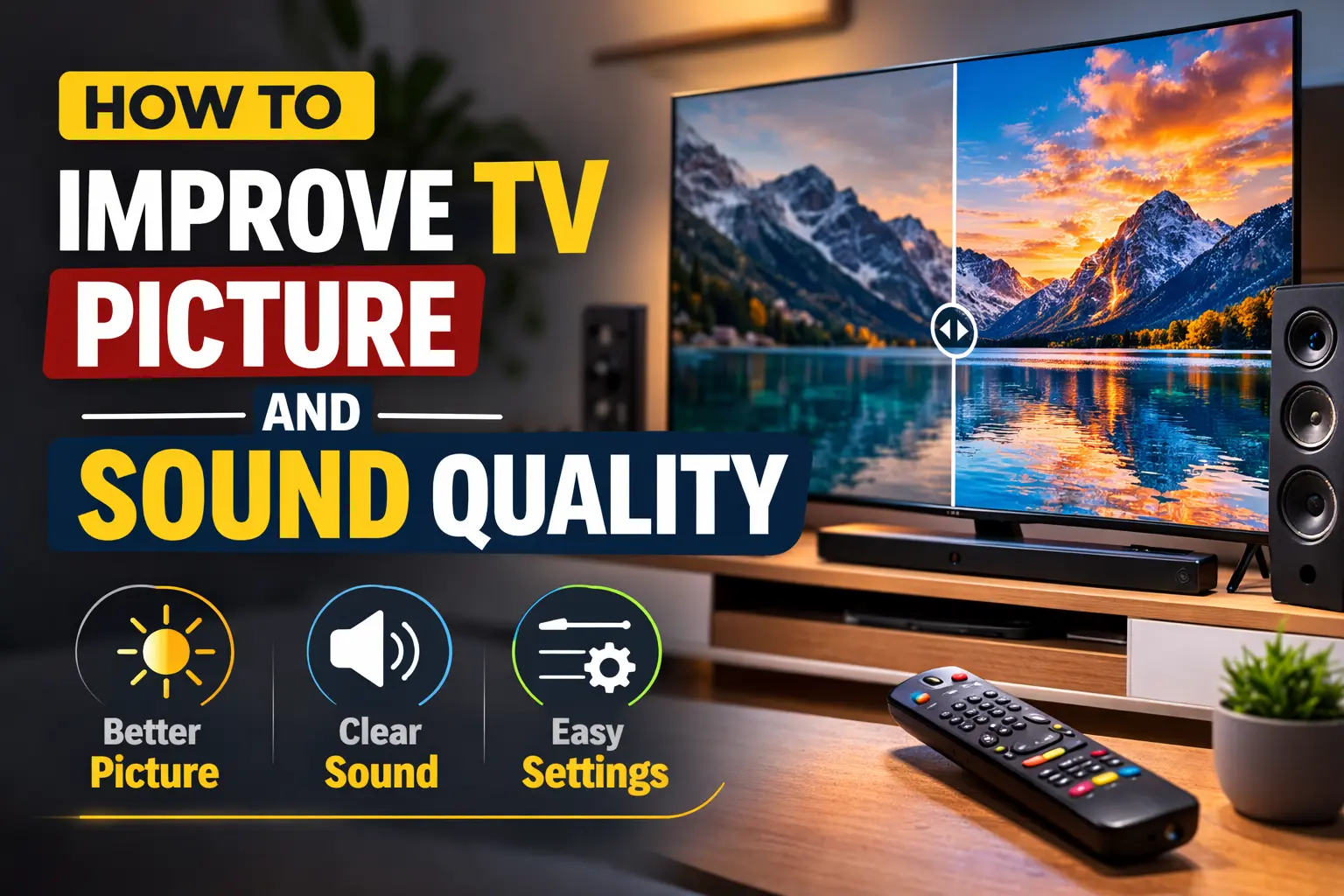
Television is more than just watching content; it’s about experiencing it. Poor picture settings can reduce detail, distort colors, and strain your eyes.
Weak audio can make dialogue difficult to understand, especially during background music or sound effects.
Improving picture and sound quality provides several benefits:
- More realistic colors and sharper details
- Better contrast between light and dark scenes
- Clearer dialogue and balanced sound
- Reduced eye fatigue during long viewing sessions
- A more immersive entertainment experience
Small adjustments can make a significant difference in how content looks and sounds.
How to Improve TV Picture Quality
Improving TV picture quality often starts with adjusting basic settings rather than buying new equipment.
Factory default modes are usually too bright or overly sharp, which can make colors look unnatural. Switching to Movie or Cinema mode usually provides more balanced and realistic visuals.
You can also improve picture clarity by adjusting brightness, contrast, and sharpness carefully. Reducing glare in the room and keeping the TV away from direct sunlight helps maintain better color and detail visibility.
Small changes in settings can make a noticeable difference in overall viewing quality.
Step 1: Change the Picture Mode
Most TVs come with preset picture modes such as:
- Standard
- Vivid
- Dynamic
- Cinema or Movie
- Sports
- Game
“Vivid” or “Dynamic” modes are often too bright and oversaturated for home use. For most viewers, switching to “Cinema” or “Movie” mode provides more natural colors and balanced contrast.
These modes reduce excessive brightness and deliver more accurate color tones, especially for movies and streaming content.
Step 2: Adjust Brightness and Contrast Properly
Brightness controls black levels, while contrast controls white levels. Incorrect settings can cause washed-out images or overly dark scenes.
How to Adjust:
- Lower brightness if black areas appear gray.
- Increase contrast until whites are bright but not glaring.
- Avoid maxing out both settings simultaneously.
Fine-tuning these levels improves detail visibility in both dark and bright scenes.
Step 3: Optimize Sharpness Settings
Many TVs apply artificial sharpness, which can create unnatural outlines around objects.
To improve picture clarity:
- Reduce sharpness to a moderate level.
- Avoid extremely high sharpness settings.
Proper sharpness enhances detail without introducing visual noise.
Step 4: Adjust Color Temperature
Color temperature affects how warm or cool an image appears.
- “Cool” settings produce bluish tones.
- “Warm” settings produce more natural skin tones.
For accurate color reproduction, “Warm” or “Warm 1” often delivers the best results for movies and shows.
Step 5: Turn Off Unnecessary Motion Smoothing
Motion smoothing features (often labeled as “TruMotion,” “MotionFlow,” or similar names) can make movies look unnatural or overly smooth.
While helpful for sports, motion smoothing may create a “soap opera effect” for films.
Turn it off for movies and cinematic content to restore natural motion.
Step 6: Enable HDR Properly (If Available)
If your TV supports HDR (High Dynamic Range), ensure HDR is enabled for compatible content.
HDR improves:
- Brightness levels
- Color depth
- Shadow detail
However, HDR performance depends on your TV’s capabilities. Make sure streaming apps and HDMI inputs support HDR output.
Step 7: Improve Room Lighting Conditions
Room lighting significantly affects picture quality.
To enhance viewing:
- Avoid placing TV opposite bright windows.
- Use soft ambient lighting behind the TV.
- Reduce glare from overhead lights.
Proper lighting reduces eye strain and enhances contrast perception.
Step 8: Update TV Software and Firmware
Manufacturers release software updates that improve picture processing and performance.
Regularly check for updates in your TV settings menu to ensure optimal display quality.
How to Improve TV Sound Quality
While picture quality often receives attention, sound quality is equally important. Many modern TVs are slim, which limits built-in speaker size and audio depth.
Step 1: Adjust Built-In Audio Settings
Most TVs offer sound modes such as:
- Standard
- Movie
- Music
- Clear Voice
- Sports
For clearer dialogue, choose “Clear Voice” or “Movie” mode. These modes enhance speech clarity while balancing background sounds.
Step 2: Adjust Equalizer Settings
If your TV includes an equalizer:
- Increase mid-range frequencies to improve dialogue clarity.
- Slightly boost the bass for a fuller sound.
- Avoid extreme treble increases to prevent harsh audio.
Balanced equalizer settings improve the overall listening experience.
Step 3: Position the TV Properly
TV speaker placement matters.
- Avoid blocking speakers with furniture.
- Ensure sound can travel freely into the room.
- Place the TV at ear level for optimal audio direction.
Proper placement improves natural sound projection.
Step 4: Add a Soundbar for Better Audio
If built-in speakers are insufficient, a soundbar provides a noticeable upgrade.
Benefits of soundbars:
- Improved dialogue clarity
- Stronger bass
- Better room-filling sound
- Easy installation
Soundbars connect via HDMI ARC or optical cables and require minimal setup.
Step 5: Consider External Speakers or Home Theater Systems
For a cinematic experience, consider:
- 2.1 speaker systems
- 5.1 surround sound systems
- Wireless rear speakers
These systems create immersive audio environments, especially for movies and sports events.
Step 6: Enable Audio Sync Settings
If the sound does not match the video timing, adjust audio delay settings in your TV menu.
Audio sync adjustments correct slight delays between picture and sound.
Step 7: Improve Room Acoustics
Room acoustics affect sound quality significantly.
To improve acoustics:
- Add curtains to reduce echo.
- Use carpets or rugs to absorb sound reflections.
- Avoid empty, hard-surface rooms.
Soft furnishings enhance clarity and reduce harsh audio reflections.
Improve Picture and Sound for Streaming
Streaming quality depends heavily on internet speed and device settings. To improve picture and sound for streaming, use a stable high-speed internet connection and select the highest available video resolution in app settings.
Connecting your TV via Ethernet instead of Wi-Fi can reduce buffering and improve overall clarity. Adjusting sound mode to Movie or Clear Voice also helps enhance dialogue during streaming.
To improve streaming performance:
- Use high-speed internet (at least 25 Mbps for 4K).
- Connect via Ethernet instead of Wi-Fi when possible.
- Select the highest resolution in app settings.
- Restart the router periodically.
Stable internet ensures better streaming clarity.
Improve TV Quality for Gaming
For better gaming performance, enable Game Mode on your TV to reduce input lag and improve responsiveness.
Adjust brightness and contrast to see details clearly in dark scenes. Turning off motion smoothing can make gameplay look more natural, while using external speakers or headphones can enhance immersive sound effects.
Gamers require different settings.
Picture Tips for Gaming:
- Enable Game Mode to reduce input lag.
- Turn off motion smoothing.
- Adjust brightness for dark scenes.
Sound Tips for Gaming:
- Use surround sound systems for immersive effects.
- Enable spatial audio if supported.
Game Mode improves responsiveness and visual performance.
Common Mistakes That Reduce TV Quality
Avoid these common errors:
- Using factory default settings
- Setting brightness too high
- Ignoring firmware updates
- Using poor-quality HDMI cables
- Placing speakers behind obstacles
Correcting these mistakes alone can improve performance dramatically.
When to Upgrade Instead of Adjust
Sometimes adjustments are not enough. Consider upgrading if:
- TV is over 8–10 years old
- Screen resolution is outdated (720p or lower)
- Audio distortion persists
- HDR support is missing
Modern TVs offer significant improvements in display and sound technology.
Conclusion
Learning how to improve TV picture and sound quality allows you to transform your home viewing experience without major expenses.
Simple adjustments like switching picture modes, fine-tuning brightness, improving room lighting, and optimizing audio settings can make a dramatic difference.
For enhanced sound, adding a soundbar or external speakers provides deeper immersion. For better visuals, proper calibration and HDR settings ensure realistic colors and sharper detail.
By combining proper settings, good room placement, and optional upgrades, you can enjoy a cinematic-quality experience at home. Small changes often produce surprisingly powerful results.
Frequently Asked Questions
Q. Why does my TV look too dark?
Ans: Brightness and contrast may need adjustment, or ambient lighting may be affecting visibility.
Q. Why is dialogue hard to hear?
Ans: Enable Clear Voice mode or increase mid-range frequencies in equalizer settings.
Q. Does HDMI cable quality matter?
Ans: For 4K or HDR content, high-speed HDMI cables ensure proper signal transmission.
Q. Can picture settings differ for each input?
Ans: Yes, most TVs allow individual picture settings for HDMI, streaming apps, and cable inputs.